Tampilkan postingan dengan label Social Media. Tampilkan semua postingan

How to Add Scoop.it bookmark button to website & Blogger

Scoop.it
Social bookmarking is a very popular word phrase especially among webmasters. Nowadays webmasters and bloggers are waiting for next Page rank (PR) update. But it’s looking like Google wouldn't update the PR in this year. So this is a really good chance for web site owners who are penalized by Google because of using black-hat SEO methods to increase the Backlinks such as buying site links to recover. In the duty of building quality backlinks, we cannot neglect the social bookmarking sites. Backlink building strategy is essential for every webmaster who wants to rank in higher positions of SERPs (Search Engine Result Pages). In this term, Social bookmarking sites play an important role in building quality dozens of backlinks in one submit. For instance, If your blog post is informative and useful, it may receive hundred of DOFOLLOW backlinks from one submit. Other bloggers and webmasters will link your post. Others who don’t have a website or blog will bookmark and share it among people in Facebook, Google plus, Twitter, LinkedIn etc.

Scoop.it is a popular post sharing and bookmarking website. Registered users can scoop web pages, blog posts and share them on Facebook, Twitter and LinkedIn. Scoop.it is a 5 PR website. So your post would be ranked in Google in no time. Conversely Google bot will crawl your blog quickly and rank newly published posts in search pages. So accommodation your readers to scoop the blog posts by adding a scoop. it  bookmark button is a really good method to boost targeted traffic and build backlinks directly to posts. So it will increase the balance of the outbound link juice and definitely rank in the top pages of SERPs quickly.

So lets see how to add official Scoop. it bookmark button for web pages easily.

Add Scoop.it button to website & Blogger


Paste one of below three types of button codes in the web page’s  source code  editor.


Button with no count

Scoop.it

<a href="http://www.scoop.it" class="scoopit-button" scit-position="none" scit-url="URL to be Scooped" >Scoop.it</a><script type="text/javascript" src="http://www.scoop.it/button/scit.js"></script>

Button with Vertical count

Scoop.it


<a href="http://www.scoop.it" class="scoopit-button" scit-position="vertical" scit-url="URL to be Scooped" >Scoop.it</a><script type="text/javascript" src="http://www.scoop.it/button/scit.js"></script>

Button with Horizontal count

Scoop.it

<a href="http://www.scoop.it" class="scoopit-button" scit-position="horizontal" scit-url="URL to be Scooped" >Scoop.it</a><script type="text/javascript" src="http://www.scoop.it/button/scit.js"></script>


  •  You can manually add a specific post page URL to be scooped. Just replace the URL of post page to be scooped with URL to be Scooped.
  • If you don not want to add specific URL to be scooped and need to add the URL of current opened page, remove the highlighted code from above button codes.

Add Scoop.it bookmark button to Blogger


Just like adding YouTube recent uploads widget,you can add Scoop.it button on Post/Static pages or HTML/JavaScript page element.To add the button manually to post pages, switch to HTML mode and place the HTML and JavaScript code where button appears. To add Scoop.it button automatically to post pages,follow below steps respectively.

1: Sign in to your Blogger account.
2: Go to Template >> Back up your current template >> Click the Edit HTML button.
3: Now find below code in your blogger template.

<data:post.body/>
OR
<p><data:post.body/></p>
4: If you want to add the Scoop.it button below of post title, Place below HTML code just above of one of above codes.If you want to display the Scoop.it button bottom of post page, Place below piece of HTML  code just below of one of above codes that you encounter.

<b:if cond='data:blog.url != data:blog.homepageUrl'>
<b:if cond='data:blog.pageType != "static_page"'>
Code of Scoop.it button 
</b:if>
</b:if>


  • Remove above red color HTML code,if you want to show Scoop.it button in Homepage of your blog. (Useful when you want to add Scoop.it button below of post title)
  • Remove above green color HTML code, If you want to show the Scoop.it button in static pages.
  • Replace Code of Scoop.it button with the code of Scoop.it bookmarking button.
5: Save your Template.

Read Also :-

  1. Commonly Used Submit to Reddit Button Codes
  2. How to add Post on Vk share buttons
  3. Attractive Cloud Label Widget for Blogger
  4. Embed Realplayer With more Controls


Would you like this tutorial ? So give some seconds to share this tutorial among your friends on Facebook,Google plus,Twitter.
How to Add Facebook Recommend Button

How to Add Facebook Recommend Button

Recommend
Among many Facebook plugins, Facebook recommendation button and like button are the most popular plugins in these days. Actually like button and recommend buttons are very similar. In an average day, there are approximately 2.7 billion unique Likes on Facebook, meaning over 955 billion in an average year! The Facebook recommend button is a social networking feature, allowing users to express their appreciation of the content. When a user clicks the recommend button, the content appears in the News Feeds of that user's friends. So it has been proved that recommend button is a powerful tool to boost social media traffic. That’s why Marshable the inspiring blog, was becoming the most popular blog than Techcrunch.

Before this post, I have written some posts about Facebook plugins. Also you would like to know how to add other social plugins on your website. So here are some posts:


Add Facebook recommend button


Now lets see how to add Facebook recommend button. There are three types of recommend button. I will display those buttons.

Standard Recommend Button


<div id="fb-root"></div><script src="http://connect.facebook.net/en_US/all.js&amp;xfbml=1"></script><fb:like href="URL of Website" send="false" layout="standard" width="100" show_faces="false" action="recommend" font="verdana"></fb:like>

Vertical count Recommend Button


<div id="fb-root"></div><script src="http://connect.facebook.net/en_US/all.js&amp;xfbml=1"></script><fb:like href="URL of Website" send="false" layout="button_count" width="100" show_faces="false" action="recommend" font="verdana"></fb:like>

Box count Recommend Button


<div id="fb-root"></div><script src="http://connect.facebook.net/en_US/all.js&amp;xfbml=1"></script><fb:like href="URL of Website" send="false" layout="box_count" width="100" show_faces="false" action="recommend" font="verdana"></fb:like>

Customization

  • Change URL of Website with your website's URL or post address. 
  • By changing the 100 value,you can adjust the button's width.
  • If you'd prefer to show the faces of people who recommended,replace true instead of false.
  • Now you can change the font-family of the "Recommend" text.If you're main traffic is from china,you can translate the "Recommend" text to Chinese language.Some font-families that can be used are below.Just replace one of them instead of verdana.
  1. arial
  2. lucida+grande
  3. segoe+ui
  4. tahoma
  5. trebuchet+ms
  6. cambria
  7. helvetica
  8. comic+sans+ms
  9. arial+black
  10. century+gothic

Add Facebook Recommend Button to Blogger


You can add Facebook like button on a post/static page or side bar in blogger. Follow below to add Facebook recommend  button on sidebar of your blogger blog.

1: Sign in to your Blogger account.
2: Go to Dashboard >> Layout >> Add >> HTML/JavaScript.
3: Then paste one of above button type code and make above changes.
4: Save your HTML/JavaScript.

Add Facebook Recommend Button to WordPress


1: Log in to your WordPress Account/Dashboard.
2: Go to WP-Admin panel >> Appearance >> Widgets.
3: Drop a Text widget to the side bar and paste the code of desired Facebook recommend button.
4: Save your Text widget.

Add BlogEngage Vote Button to Blogger & Wordpress

Blogengage is a popular guest blogging blog and blogging community, where registered users can share their guest posts and build backlinks without hassle or fuss. Many bloggers use Blogengage so that building quality backlinks easily and boost target  traffic. Also Blogengage is a voting based blog directory and revenue sharing blog. So people who want to increase their Adsense earnings and backlinks, can utilize Blogengage for making these tasks. Blog engage is a blogging community where thousands of pro bloggers share their newly updated posts. So they have introduced new Vote button, thereof users can vote each article.

Like other social sharing buttons, users must log into their account in order to vote the articles. In my previous posts, I explained you how to add official social sharing buttons to your blog. Here are some tutorials that I think they might be useful for you.

Blog-Engage-Logo


DEMO :-

Add Blogengage vote button to Blogger


Now let’s see how to add Blog engage vote button on blogger blogs. Here on these steps, you will be able to add a vote button below of the post title.

1: Sign in to your Blogger account.
2: Now go to Template >> Edit HTML.
3: Search for below code in your template.

<data:post.body/>

4: Now just before of above codes, Paste below code directly.
<div style='float:left; margin-left:10px; margin-top:12px;'><script type='text/javascript'>submit_url=&quot;<data:post.url/>&quot;;</script><script src='http://blogengage.com/evb/button.php' type='text/javascript'/></div>

  • Replace left with right,if you want to display Blog engage vote button on the right side.
  • Adjust the left margin changing the 10px. If you floated the button to right side,so you may change margin-left: with margin-right: Also you can adjust the distance between vote button and post title by changing the 12px

Advanced ( Add your Username )

If you're a blog engage registered member and want to place the vote button in your blogger blog with your username,place below piece of code instead of above code and change MyUserNameHere to your Blog engage username.
<div style='float:left; margin-left:10px; margin-top:10px'><script type="text/javascript">submit_url =MyUserNameHere&quot;<data:post.url/>&quot;;</script><script src="http://blogengage.com/evb/button4.php"></script></div>

5: Save your Template.

Add Blogengage vote button to WordPress


As though adding Blog engage vote button to Blogger, you can add this button to Wordpress blogs too. Now I will explain you how to add Blogengage vote button below of post title in Homepage.

1: Log in to your WordPress account.
2: Go to Main Index Template ( index.php ) in your current activated theme on your WordPress blog.
3: Now find the element where post information like author, category and tags and date of publishing are placed. Eventually you will find this tag in div element.
<div class="post-info">
4: Now paste the one of below codes, just below of above code.

Basic

<script type="text/javascript">submit_url = "<?php the_permalink(); ?>";</script><script src="http://blogengage.com/evb/button.php"></script>

Advanced

Replace your Blog engage username instead of MyUserNameHere.
<script type="text/javascript">submit_url =MyUserNameHere"<?php the_permalink(); ?>";</script><script src="http://blogengage.com/evb/button4.php"></script>

5: That’s all. Now save your Template.

Now go to the homepage of your blog and see the Blog engage vote button is appearing just below on the post title.

Facebook comment box for Blogger with notifications Enabled

The Facebook comment box is one of most popular comment boxes used by webmasters in these days. In 2009, Facebook developers introduced their best social plugin knowing as “Facebook comment box’. This Facebook plugin can be embedded in any website or blog and visitors will use their Facebook account ID, Yahoo, AOL or Hotmail account to drop comments.


Comments
Websites or blogs which use the Facebook comment box receive many advantages, especially engaging people to comment on and share it on Facebook. You can see “Post on Facebook” option has appeared on comment box and whenever anyone comments using their Facebook account, the message and link to commented site will be posted on the timeline of visitor. If there are many third party commenting plugins, most of them ask the username and Password before publishing the comments. Though we all know about Facebook, it has huge registered members and other thing peoples who don’t have a Facebook account can comment using other accounts mentioned in above. One thing you should know as you want to learn more about Facebook comment box: Facebook comment plugin has no SEO value. It uses iframe tag. So search engines like Google won’t crawl the content in the comment box. If you use  a regular comment box such as default blogger comment form and get more comments with additional  keywords, it’s  not worrying if you haven’t optimized your articles with keywords. Readers would do this SEO task for you. Because keywords are words/phrases what people are typing. This is something Facebook lacks, exclusive of extra traffic you get from Facebook.

A few months ago I wrote a post about adding the Facebook comment box without notifications. It was easier to embed Facebook comment box than Vkontakte comment form and  Disqus comment box. So here in this tutorial I will explain you how to add Facebook comment box with the notification feature enabled to blogger. First of all we should create a Facebook application for your blog.


Create a Facebook Application


Step 1: Go to Facebook developer page and click on “Create New App” button at the top right.


Create-New-App


Step 2: Now enter the Application name ( title of the app ) and its  Namespace (Link for your app). Click on continue button and fill out the captcha and proceed.


Application-name

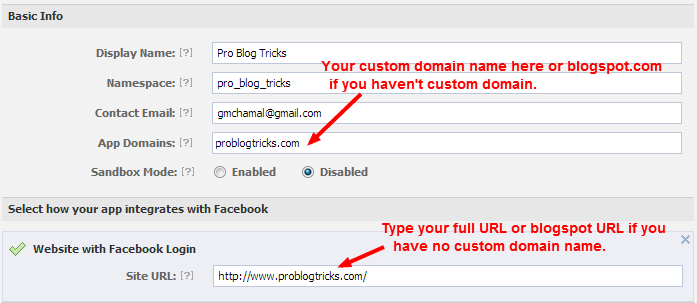
Step 3: Now you’re half done. On the next page, type your base domain . Enter custom domain ( If you’re using a custom domain) or just blogspot.com( if you’re using .blogspot sub domain) in the space provided to the app domain under Basic info.

Click on “Website with Facebook Login” tab and type your blog address ( http://www.problogtricks.com/ or http://bestlodge.blogspot.com/ ). Make sure you have typed your blog’s URL starting with http:// and ending with / as shown in below screenshot.


App-Domains
Click Image to Enlarge

Step 4: Now scroll down the page and click on save settings button. You’re done with creating the application. On the same page you can see your Facebook application ID and its Secret id. Copy them and save on your computer.

Now let’s see how to add Facebook comment box with notification enabled in Blogger.


Add Facebook comment box code to the template


Step 1: Sign in to your Blogger account and go to Template.
Step 2:  First of all, get a copy of your current template. It's most prominent action which you should do before doing any change in template. In case if you get any wrong in the template, it’s difficult to recover them.
Step 3: Click on “Edit HTML” button and find below code in your template.
<html
Step 4: Now in front of the above code, paste below code directly inside the <html> tag. 
xmlns:fb='http://www.facebook.com/2008/fbml'
Be sure you have added a space before and after the above code. See below example.


<html  xmlns:fb='http://www.facebook.com/2008/fbml'  b:version='2' class='v2' expr:dir='data:blog.languageDirection' xmlns='http://www.w3.org/1999/xhtml' ........ xmlns:expr='http://www.google.com/2005/gml/expr'>

Step 5: Use Ctrl + F shortcut keys and find below code in your template.
</head>
Now paste below block of code just before of the above code.
<meta expr:content='data:blog.pageTitle' property='og:title'/>
<meta expr:content='data:blog.url' property='og:url'/>
<meta content='Pro Blog Tricks' property='og:site_name'/>
<meta content='Image-Link-Of-Blog-Logo' property='og:image'/>
<meta content='YOUR_APP_ID ' property='fb:app_id'/>
<meta content='http://www.facebook.com/problogtricks' property='fb:admins'/>
<meta content='article' property='og:type'/>

Customization

  • Replace your blog title or name instead of Pro Blog Tricks
  • Add your blog's logo link with Image-Link-Of-Blog-Logo.This logo will appear next to your post titles on Facebook profiles of visitors.
  • Replace YOUR_APP_ID with the App id that i asked you to save.
  • http://www.facebook.com/problogtricks is the link of  Facebook fan page.Just replace with your profile page or like page URL.


Step 6: Next find below code using above shortcut keys.
<body>
If you can’t find this code, it should be a similar code like below one. 
<body expr:class='&quot;loading&quot; + data:blog.mobileClass'>
After one of above codes in your template,paste below code.


<div id="fb-root"></div>
<script>
window.fbAsyncInit = function() {
FB.init({
appId : 'MY APPLICATION ID HERE',
status : true, // check login status
cookie : true, // enable cookies to allow the server to access the session
xfbml : true // parse XFBML
});
};
(function() {
var e = document.createElement('script');
e.src = document.location.protocol + '//connect.facebook.net/en_US/all.js';
e.async = true;
document.getElementById('fb-root').appendChild(e);
}());
</script>

Make sure that you have changed the MY APPLICATION ID HERE with your Application ID.

Step 7: Now here’s the last part of this tutorial to add the Facebook comment box code to display it on the blog. We can add comment box manually on each page. But when it comes to real blogging, it’s difficult and boring work to insert the comment box code in every page. So find below code in you template to add the iframe to display the comment box below of each post pages.


<data:post.body/>

or

<p><data:post.body/></p>

If you’re using a magazine type template like PBT, you will encounter two or three similar codes. Using the wrong <data:post.body/> code will not show up the Facebook comment box ( second code line worked me). If you’re not sure which code should be used, search for below code in your template.


<div class='post-footer-line post-footer-line-1'>

or

<p class='post-footer-line post-footer-line-1'>

Now paste below piece of HTML code just below of one of the above codes.


<b:if cond='data:blog.pageType == "static_page"'>
<b:if cond='data:blog.pageType == &quot;item&quot;'>

<p align='center'>
<div style='background: #CCCCCC;'>
  <div style="text-align:center;font-family:Helvetica,Arial,'DejaVu Sans','Liberation Sans',Freesans,sans-serif;color:#2578C0;font-size:32px;"><strong >Spread out Your Opinions</strong></div>
<br/>
<script src='http://connect.facebook.net/en_US/all.js#xfbml=1'/>
<div><fb:comments expr:href='data:post.url' expr:title='data:post.title' expr:xid='data:post.id' width='450'/></div>
<div align='right'><a href='http://www.problogtricks.com/2013/09/facebook-comment-box-for-blogger-with-notifications.html' target='blank'><small>[Comment Box for Blogger]</small></a></div>
</div>
</p>
</b:if>
</b:if>


  • If you do not want to display the facebook comment box in static pages,remove above first and last two lines.
  • Do you want to display Facebook comment box in homepage and archive pages ?So remove above highlighted codes from above block code.
  • Change #CCCCCC with the background color of comment box area.
  • Set the width of Facebook comment box.If you want to change the width from 450px to 500px,just change 450.
  • Change the title by replacing the Spread out Your Opinions.


Enabling the Notification for comments


This is the last work you do with Facebook application. We created Facebook application, not for anything, track the comments and shares on the Facebook. As my previous post adding Facebook comment box without notifications, you just needed to do is adding the piece of code to blog. But here we want to add the comment box which has enabled the notifications. So now let’s see how to enable the notification for every comment.

Visit this URL:  https://developers.facebook.com/tools/comments/?id=YOUR_APP_ID

Replace YOUR_APP_ID with your application ID.

On that page, click on settings and add yourself as a moderator.

Add-moderators

That's all.Now you'll receive comment notifications as regular notifications you get.Tell a friend to comment on your site and then log in to your Facebook account.You will see there is a notification that informs your friend commented on your blog.

Need Help... ?


Did you check our demo ? Have any problem ? Don't hesitate,ask me anything by commenting below.

Would you like our tutorial ? So spread this tutorial among your friends in Facebook,Google plus and Twitter.Stay blessed friends!

How to Add Vkontakte Like Button

Vkontakte is a popular social network, especially among Russian language speaking people. Nowadays they’re making new changes and introducing new widgets for webmasters. Already I have rendered you several Vkontakte plugins for both websites and Blogs like Vkontakte comment form, Poll widget, share buttons etc.

Like
This time I will show you how to add Vkontakte Like button. As we all know, different social networks afford different types of like buttons ( E.g: Facebook like button, Google plus one button). Vkontakte like button or Vk like button is another different and an attractive button. If you want to boost traffic mostly from Russia to your websites, this button can make this duty.If you look at Vkontakte like button well, you might see it works differently than other Like buttons.When hover on like button icon, faces of people who liked will be pop out.


Create a Vkontakte application


First you must have created Vkontakte application for your site(s) that you want to add VK like buttons. If you have made an Application, please omit these steps and follow from next steps.

Don’t worry. It just takes five minutes to create an application.

1: Do you have a registered Vkontakte account ? If you have, sign in to your Vk account. If your answer is “no”, So make a FREE Vk account from using this link.
2: Now visit this page so that making a web Application.
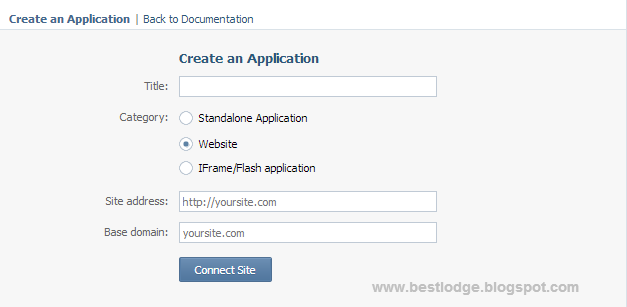
3: Create your application simply using below instructions.


Create an Application Vkontakte

  • Type your Application’s title in the  first field. (E.g: My First Application)
  • Choose Website option from the “Category”.
  • Type  URL of your website or blog with http://  in the “Site address” field. ( E.g: http://www.problogtricks.com)
  • In “Base domain” field, type your site address without the http:// ( E.g: www.problogtricks.com)
  • Click on “Connect Site” button and verify application using your SIM card.

Make sure you have saved the Application ID and other details in your computer.

Vkontakte Like Button Types


Button with text counter

Button with text counter


Button with mini counter

Button with mini counter


Mini button

Mini button


Mini button with counter at the top

Mini button with counter at the top


Generate Vkontakte Like button Codes


You can customize Vkontakte like button(Button Height,  Button Name ) using  Vkontakte  Like button code generation tool.

1: Go to like button code generator tool in Vkontakte Development website.
2: Then choose the suitable web application. Select desired button style and copy the Embedding code.Paste the code where Vkontakte like button appears.

Vkontakte Like button Codes
Click Image to Enlarge


Add Vkontakte Like button on Blogger 


Like adding Vkontakte share links,you can add Like buttons on both post & static pages and Sidebar. Now i will explain you how to add Vkontakte like buttons in Layout sections.

1: Sign in to your blogger account.
2: Now go to Layout >> Add a Gadget.
3: Select on "HTML/JavaScript" page element and paste the button code on it.
4: Last save your "HTML/JavaScript"

Add Vkontakte Like button on WordPress


1: Go to your WordPress Dashboard or log in to WordPress account.
2: Select on Appearance tab and click on Widgets.
3: Now drop a Text widget to the sidebar where like button appears.
4: Paste the copied code in the text editor and then Save it.


Need help...?


This tutorial explained you how to add Vkontakte like button on website and blog.I think that it's clear to understand about generating codes and embedding buttons on your site.If you have any question still, just type down it in below. Also i would like to know that should Vkontakte like button be included in the foremost button-set with Facebook,Google plus ...etc.If you have any idea about it, share it with us. Have a nice day!

Add Baidu Floating Social Share Button

These days social sharing has become a routine of everyone. All people tend to share anything among their friends whenever they log in to their social accounts. Social share buttons afford a major place to share web content within socialized friends. Social networks such as Facebook, Google plus, Twitter, LinkedIn, Pinterest, Vkontakte, StumbleUpon have already assigned new button set for webmasters. These various buttons can share web content to social networks, expose the user profile so that following him and bookmarking & archiving web pages.

You may have known about Baidu. If you haven’t viewed, so visit it from here. Baidu is a China based search engine which is the worlds’s fifth most popular website as Alexa status with 9 Google Page rank. Robin Ii, the founder of Baidu explains why & how he chose the name of the Baidu (百度) search engine.

Many people have asked about the meaning of our name. 'Baidu' was inspired by a poem written more than 800 years ago during the Song Dynasty. The poem compares the search for a retreating beauty amid chaotic glamour with the search for one's dream while confronted by life's many obstacles. '...hundreds and thousands of times, for her I searched in chaos, suddenly, I turned by chance, to where the lights were waning, and there she stood.' Baidu, whose literal meaning is hundreds of times, represents persistent search for the ideal. ”


Baidu offers many services like Baidu Map, Baidu News, Baidu Mp3 , Image and Video Search, Baidu Encyclopedia, Baidu Games and Baidu Experience etc. Do you know that Baidu had launched a new social networking service called Baidu Space ? By July, it had more than 100 million registered visitors and by 2008 it was 40 million unique worldwide visitors. You can find more information about the Baidu search engine and its history from the Wiki page from here.

As you know Baidu offers all about services for getting knowledge and Entertainment, Baidu Share buttons are one of most using sharing buttons by webmasters. Some of other share buttons are,

  • Share Button
  • Like Button
  • Like after sharing
  • Picture Share
  • Add to Baidu
[[ Demo of Baidu Floating Share button is in Right side ]]

Add Baidu Share Button


There are four types of sharing buttons in Baidu. Now I will explain you how to add Baidu Floating window sharing button and customize it as you want. Floating sharing buttons are visible to everyone. Therefore possibility of sharing web page is higher than adding share button in post content.

<!-- Baidu Button BEGIN -->
<script type="text/javascript" id="bdshare_js" data="type=slide&amp;img=5&amp;mini=1&amp;pos=right&amp;" ></script>
<script type="text/javascript" id="bdshell_js"></script>
<script type="text/javascript">
var bds_config={"bdTop":200};
document.getElementById("bdshell_js").src = "http://bdimg.share.baidu.com/static/js/shell_v2.js?cdnversion=" + Math.ceil(new Date()/3600000);
</script>
<!-- Baidu Button END -->

.......................................................................................................................................

Customization

.......................................................................................................................................


  • Change Style Selection Button
You can choose desired style selection button by changing the red color number 5 to below one.

Baidu-Share-Buttons


  • If you want to show two columns,just remove mini=1&amp; code from above code.
  • To set the Floating window position,change right to left if you want to display Baidu share button in left side.
  • Change 200 with your craved height to adjust the floating widow button height.

  • Add Baidu Share Button to Blogger


    1: Sign in to your Blogger account.
    2: Go to Dashboard >> Layout >> Add a Gadget >> HTML/JavaScript.
    3: Now paste above JavaScript code in HTML/JavaScript page element and after making above customization,Save it.

    Recommend : Facebook Share button with counter for blogger
                           Add Buffer button to your blog manually
                           How to add Google plus one button

    .......................................................................................................................................

    Need Help ?

    .......................................................................................................................................

    I would like to know mistakes which are done by you when adding Baidu social share button.Just leave your query or feedback below commenting section.

    Would you like this tutorial ? So stumble,tweet or share on Facebook,Google this tutorial.Stay blessed !

    Social Media Dimensions | Image Sizes:Facebook,Google+,Twitter

    Social media has become a part of everyone’s life, To sharing stuff with friends and relatives, spend  free time, see what is happening in the world and engaging in online games, we use social networks progressively. Not only general users,marketers,entrepreneurs and businesses  have found that social networks such as Facebook,Twitter,LinkedIn are some of best places to market their products and services.As building marketplace in social networks, for enlarging the online presence of popular persons and organizations like artists,authors,Television companies,Actors as on use social networks(i.e: Fan pages). Many bloggers and webmasters have assigned their own pages at various websites before they establish the website in order to prevent anyone book them.

    Social-NetworkSocial networks are changing  fast… That we all know. Search engines especially Google like to websites to be conflated with social networks. To build good audience at these sites,we have to assign few minutes per day in order to retain pages cleanly and neatly.Cover photo and profile photo are the most prominent components in a page.We should add attractive and relevant images to cover and Profile.But dimensions of these both items in each social networks is different.It is hard to find out the correct dimensions in each account.Today I logged into Facebook account to change cover picture of Pro Blog Tricks Facebook like page.But I have to re-size the image four times to get correct dimension.So knowing what’re the appropriate image sizes used in every social networks is worthwhile.

    Image sizes(Dimensions) of  some Social networks


    Facebook Image sizes:

    • Facebook Cover photo: 851 x 315
    • Facebook Profile photo: 180 x 180

    Twitter Image sizes:

    • Twitter Header image: 520 x 260
    • Twitter Profile image: 81 x 81

    Google+ Image sizes [updated]:

    • Google+ Cover photo: 2120 x 1192
    • Google+ Profile photo: 270 x 270

    LinkedIn Image sizes:

    • LinkedIn Cover photo: 646 x 220
    • LinkedIn Profile photo: 100 x 60

    Pinterest Image sizes:

    • Pinterest Profile Photo: 160 x 165

    Instagram Image sizes:

    • Instagram Profile Photo: 110 x 110

    YouTube Image sizes [updated] :

    • YouTube Cover Art: 2560 x 1440 
    • YouTube Cover Art Safe Area: 1546 x 423


    Below is an inforgraphic that trots out what’re the current dimensions used in each social networks such as image sizes( cover photo,hear photo,profile picture,recent images,banners …) ,amount of post description characters( Shares,Tweets),video sizes,status update size and sizes of sponsored story profiles etc. Tentsocial which is creator of this inforgraphic updates information on it whenever any social network changed their timeline and layout performances.So you can check the changes any time by bookmarking this page on your browser.


    Dimensions in Facebook,Google plus,Twitter,LinkedIn,Pinterest,Instagram and YouTube


    Image Credit: freedigitalphotos

    How to add Pinterest follow button | Blogger

    Since a few months we render different types of official sharing widgets, following widgets and buttons. These are officially released by each social networks such as Facebook like button, Twitter follow button, Google plus one button, Vkontakte share buttons, Buffer buttons, Digg buttons, Reddit buttons etc.

    Follow-me-on-Pinterest
    Pinterest button is another delightful button which is used by every webmasters. Official pin button and Pinterest counter button are other useful official buttons. If you have a Pinterest account, you will definitely add a Pinterest follow button on your site either website or blog. By adding Pinterest follow button in the sidebar, you can mention your readers that you’re in the Pinterest and they can follow your boards.


    Process of Pinterest follow buttons are two ways. First is reader click  on the follow button. Then he/she will focus to your profile at Pinterest. Next he/she can follow each board or Follow All.

    Now lets see how to add Pinterest follow button to your site.

    1) Load the JavaScript


    First you have to load the JavaScript code in order to work button properly. Do not worry, this JavaScript code is stored at Pinterest. So your site’s loading speed  will be not increased and you share about 50% with Pinterest.

    If you have interlinked Pinterest button before ( i.e:  added pin it button), So please omit this step and follow from next step.

    Add Below code just before of </head> HTML tag.

    <script type="text/javascript" src="//assets.pinterest.com/js/pinit.js"></script>

    2) Add Pinterest Follow button.


    Place this code where pin follow button appears. Ensure you have make below changes.

    <a data-pin-do="buttonFollow" href="http://pinterest.com/problogtricks/">Pro Blog Tricks</a>

    • http://pinterest.com/problogtricks/ :: Add your Pinterset URL
    • Pro Blog Tricks  :: Full name to be shown on the button.

    Preview :

    Pro Blog Tricks


    Pinterest follow button for blogger


    Like you are adding StumbleUpon buttons, you can add Pinterest buttons anywhere on the blog like post page and sidebar. But now I will explain you how to add Pinterest follow button just below of post title on Blogger.

    1: Sign in to your Blogger account and go to Template >> Edit HTML.
    2: Find </head> HTML code in your template.
    3: Just above it, paste the JavaScript code in the first step.
    4: Now find below code in your Template using Ctrl+f (PC) or CMD+f (Mac). (Tip: First select on template editor)

    <data:post.body/>

    or

    <p><data:post.body/>

    5: Then paste the HTML code in the second step just above of one of above two codes you found and make necessary changes.
    6: Save your template.

    Enjoy!